 seolounge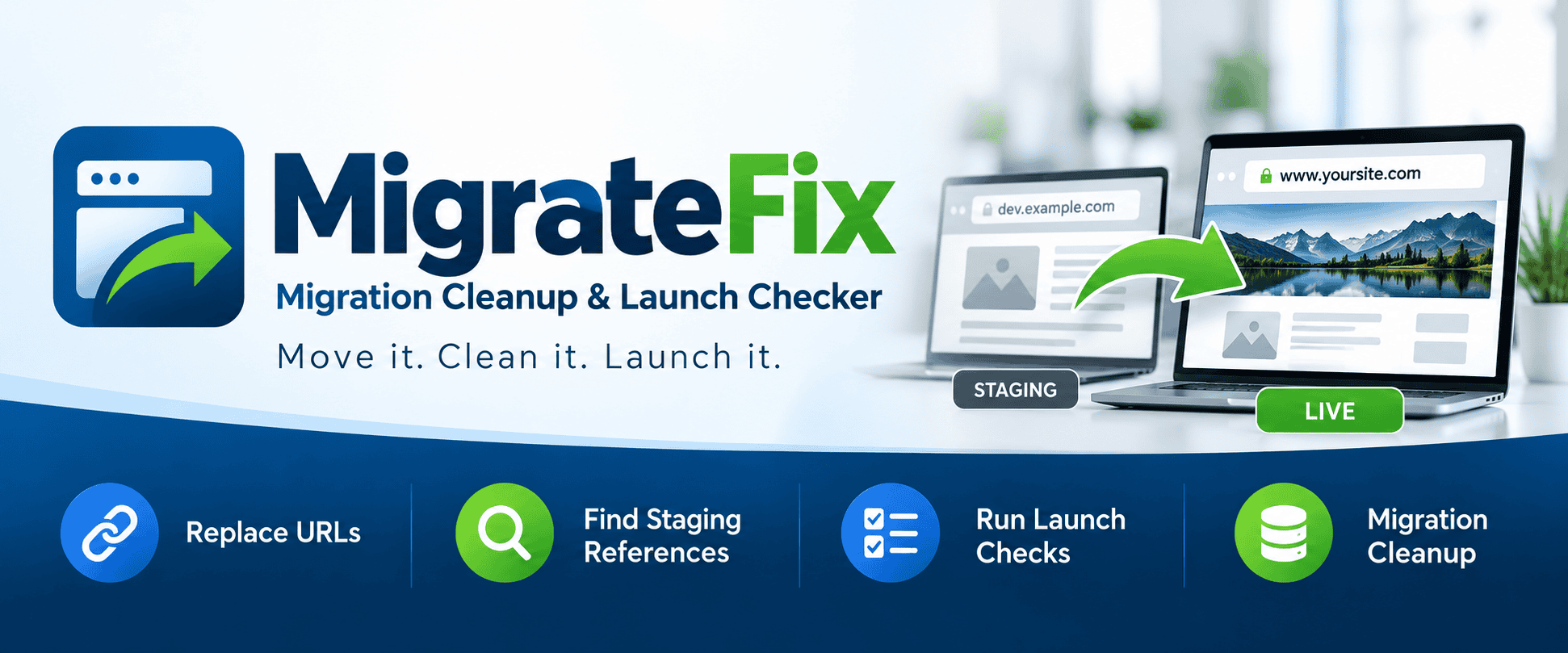
MigrateFix: WordPress Migration Cleanup & Launch Checker
Your new WordPress site just went live. The pages load, the menu works, and then you spot it: an image is missing, a link still points to staging, or an old development URL is hiding somewhere in the database.
MigrateFix is a free WordPress migration cleanup plugin that helps you find and replace old URLs after moving a WordPress website from development or staging to production.
Enter the old URL and the new URL, scan the database first, review what MigrateFix finds, and then decide whether to run the replacement.
Download Free on WordPress.org
Requires WordPress 6.4 or newer and PHP 7.4 or newer.
Why images and links break after a WordPress migration
WordPress can save complete web addresses in the database. If you upload an image while building a site at dev.example.com, content or settings may continue referencing that development address after the website moves to its live domain.
Old URLs can remain in places such as:
- Posts and pages
- Images and media references
- Custom fields
- Plugin and theme settings
- Widgets and other WordPress options
- Metadata
Changing the WordPress Address or Site Address does not necessarily replace URLs already stored throughout the database.
That can create problems after launch. Images may stop loading when the staging environment is removed. Internal links can continue sending visitors to the development site. An old HTTP address can also contribute to mixed-content problems when the production website uses HTTPS.
MigrateFix was built to make finding and cleaning up these references easier.
What MigrateFix does
MigrateFix provides a scan-first workflow for WordPress migrations.
Instead of immediately modifying your database, you enter the old staging or development URL and the new production URL and run a scan.
MigrateFix searches common WordPress database areas for references to the old URL and reports what it finds.
When you’re ready, you can run the replacement.
Current MigrateFix features include:
- Scan before replacing. See whether references to the old URL exist before making database changes.
- Replace old URLs. Change staging or development URLs to the new production URL.
- Serialized data handling. MigrateFix handles supported serialized WordPress values during replacement instead of treating them as ordinary text.
- Common WordPress database coverage. Scan content, excerpts, post metadata, options, term metadata, user metadata, and comment metadata.
- Post GUID protection. MigrateFix intentionally does not modify WordPress post GUIDs.
- Launch checks. Review several important WordPress settings after moving the site live.
- Permission and security checks. Database actions are restricted to authorized WordPress administrators and protected with WordPress nonces.
MigrateFix does not automatically change anything when you run a scan.
WordPress launch checks
Replacing old URLs is only part of moving a WordPress website from staging to production.
MigrateFix also checks several settings that are worth reviewing after launch.
The current version checks:
- Whether your Home URL uses HTTPS
- Whether your WordPress Home URL and Site URL match
- Whether WordPress is allowing search engines to index the site
- Whether a custom permalink structure is configured
These checks are read-only. MigrateFix shows you the results but does not automatically change these settings.
This can be especially useful for catching the “Discourage search engines from indexing this site” setting that sometimes gets left enabled after a staging website goes live.
How to replace old URLs after a WordPress migration
Using MigrateFix is intentionally straightforward.
1. Back up your WordPress database.
Always create a current database backup before performing a search-and-replace operation.
2. Install and activate MigrateFix.
After activation, open Tools > MigrateFix from your WordPress dashboard.
3. Enter the old URL.
Enter the address used by the old development or staging website.
For example:
https://staging.example.com
4. Confirm the new URL.
MigrateFix automatically fills the new URL field with the current WordPress Home URL. Verify that it is correct before continuing.
5. Scan the database.
Run the URL scan first. MigrateFix will search supported WordPress database areas and report how many matching records it finds.
Nothing is changed during this step.
6. Review the results.
Make sure the old and new URLs are correct and that you have a current database backup.
7. Replace the URLs.
When you’re ready, run the replacement. MigrateFix will replace matching references while handling supported serialized WordPress data.
8. Review the launch checks.
After the migration cleanup, check HTTPS, search engine visibility, your WordPress URLs, and permalink configuration.
What MigrateFix currently scans
MigrateFix searches several common WordPress database locations where staging URLs can remain after a migration:
- Post and page content
- Post and page excerpts
- Post metadata and custom fields
- WordPress options
- Term metadata
- User metadata
- Comment metadata
MigrateFix intentionally does not replace values in the WordPress posts GUID column.
Why serialized WordPress data matters
A WordPress migration isn’t always as simple as running a standard SQL find-and-replace.
WordPress themes, plugins, widgets, and other components can store settings as serialized PHP data. Serialized strings contain information about the length and structure of the stored values.
Changing a URL without properly handling that structure can corrupt the stored value.
MigrateFix recognizes supported serialized WordPress values, processes their contents, and serializes them again after replacement.
This makes it more appropriate for WordPress migrations than blindly running a database-wide SQL REPLACE command.
Looking for a Velvet Blues Update URLs alternative?
Velvet Blues Update URLs was widely used by WordPress developers and site owners who needed to replace old URLs after moving a website.
MigrateFix follows the same useful idea: provide the old URL, provide the new URL, and clean up references left behind by the migration.
MigrateFix adds a scan-first workflow so you can see whether the old address is still present before deciding to modify the database.
It also includes basic post-launch checks to help identify common settings that should be reviewed when a WordPress site moves from development to production.
If you previously used Velvet Blues Update URLs for WordPress migrations, MigrateFix is designed around a familiar problem with a modern workflow.
Built for WordPress developers, agencies, and site owners
MigrateFix is useful whether you migrate WordPress websites regularly or simply need to move one website from staging to production.
It can help:
- WordPress developers clean up sites after deployment
- Web design agencies check client websites before completing a launch
- Freelancers move websites between development and production domains
- Site owners find old URLs after changing domains or environments
The goal is simple: make one of the most common WordPress migration cleanup jobs easier and safer.
Built by Innovative Flare
MigrateFix is developed by Innovative Flare, a web design and digital marketing agency in West Palm Beach, Florida.
We build and migrate WordPress websites for clients, so leftover development URLs and forgotten launch settings are problems we’ve encountered in real WordPress projects.
MigrateFix grew out of that workflow.
The plugin does not add advertisements, credit links, or tracking scripts to the public side of your website.
Download Free on WordPress.org
Need help moving or improving a WordPress website? Contact Innovative Flare to discuss your project.
MigrateFix Frequently Asked Questions
Is Migration Cleanup free?
Yes. Migration Cleanup is free and licensed under the GPL, so there's no paid version or license key. It only adds a screen to your WordPress dashboard under Tools. Nothing shows up on your public site.
Can I undo a URL update?
Not from inside the plugin. Updates are written straight to the database, which is why the plugin asks you to confirm a backup first. To reverse a change, restore that backup, or run the tool again with the old and new URLs swapped.
Does it work with Elementor, WPBakery, and other page builders?
Yes. It updates post content and post meta, where page builders store their layouts, and it catches the JSON-escaped links Elementor uses. It also clears Elementor's CSS cache after an update. One exception: WPBakery's Raw HTML element encodes its contents, so check links inside that element by hand.
Do the launch checks change anything on my site?
No. The launch checks only read your settings and count database rows. When a check needs attention, it links to the WordPress screen where you can fix it yourself.
Will it change my Site Address or WordPress Address?
No. Migration Cleanup never edits those two settings, so a typo can't lock you out of your dashboard. Set both under Settings > General before or after you run the cleanup.
Should I update GUIDs?
Attachment GUIDs are safe to update and are on by default. Post GUIDs are off by default. Only update them on a site that has never been public, because feed readers use them to tell posts apart.
What does Migration Cleanup need to run?
WordPress 6.2 or newer, PHP 7.4 or newer, and an Administrator account. It works on single sites and multisite networks. On multisite, run it from each site's dashboard, since it updates one site's tables at a time.
MigrateFix: WordPress Migration Cleanup & Launch Checker

Free WordPress plugin that replaces old staging and development URLs after a site migration, runs launch checks, and shows a migration report.
Price Currency: USD
Operating System: WordPress 6.2 or newer
Application Category: DeveloperApplication